
How to move Chrome extensions to a new computer without losing their data
A new laptop is the moment people discover that "my extensions sync" and "my extension data syncs" are two different promises. Chrome keeps the first one very well. The second depends on how each extension was built, and nothing warns you before you wipe the old machine.
Here is what moves on its own, what quietly stays behind, and the order to do things in so nothing gets lost.
What Chrome Sync moves for you
Sign into Chrome on the new computer with the same Google account and turn sync on. With Extensions included in sync settings (it is by default), Chrome reinstalls every extension you got from the Chrome Web Store. They come back switched on or off as they were, usually within a few minutes.
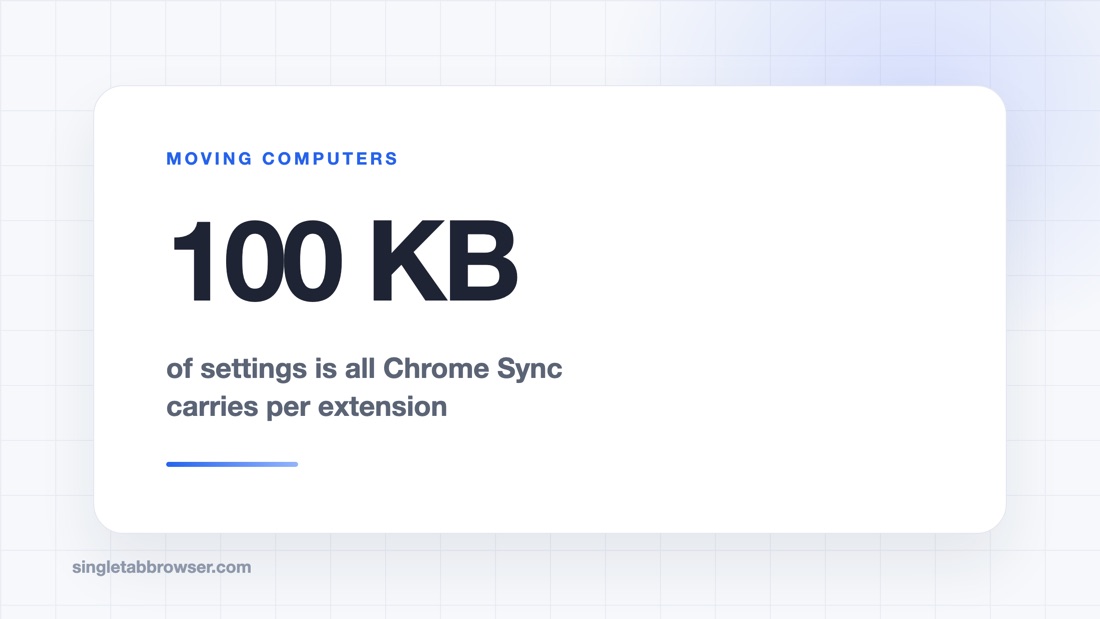
Extension settings come with them only if the developer saved them to Chrome's sync storage. That storage is deliberately small — about 100 KB per extension — so it suits preferences such as a theme or a list of enabled sites. It does not hold your 400 saved tabs.
| What | Moves with Chrome Sync? |
|---|---|
| The list of Web Store extensions | Yes, reinstalled automatically |
| Small settings saved to sync storage | Yes, if the developer used it |
| Data saved locally (sessions, notes, rules) | No |
| Extensions installed outside the Web Store | No |
| Extensions since removed from the Web Store | No |
| Data in the extension's own cloud account | Yes, after you sign in to it |
The extensions that need an export
Anything that holds a lot of your own content in the browser is worth checking before you leave the old machine. The common ones:
- Tab managers. OneTab keeps its lists on your computer; use its export option to copy them out as a list of URLs, and import the list on the new machine. Session Buddy has a backup export for saved sessions.
- Content blockers with your own rules. Custom filters and allow-lists usually live locally. Most blockers have a backup or export option in their settings.
- Notes, highlights and clippers that do not sign in. If an extension never asked you to create an account, assume its data is on this computer only.
- Style and script tools. Extensions that hold custom CSS or user scripts usually offer a backup file — take it.
A quick test for any extension: open its settings and look for words like export, backup or sync. If there is an account to sign into, the data probably lives with the developer. If there is an export button and no account, use the button.
The extensions that look after themselves
Password managers, bookmark services such as Raindrop.io, reference managers like Zotero and note tools tied to an account keep your data on their own servers. On the new computer, the extension reinstalls through sync and you sign into it once. Make sure you know the master password or have the recovery codes before the old machine is gone; that is where these moves usually go wrong.
Check sync is actually working before you switch
Sync can be turned on and still not be syncing — paused after a password change, blocked by a sync passphrase you forgot, or limited by a work account. Two minutes on the old machine saves a bad surprise on the new one:
- Open the profile icon at the top right. It should say sync is on, with no pause or error message under your name.
- Open
chrome://sync-internalsand look at the summary. It shows when the last sync happened and whether extensions and extension settings are among the types being synced. - If you set a custom sync passphrase years ago, make sure you still know it. Without it the new computer cannot read your synced data.
- Install one small, harmless extension on the old machine and watch it appear on another device signed into the same account. If it does, extensions are syncing.
If you use separate Chrome profiles for work and personal browsing, each one syncs on its own. Repeat the checks for every profile you plan to move.
Copying the whole Chrome profile
You can copy Chrome's profile folder from one computer to another, and it does carry locally stored extension data with it. On Windows the profiles live under %LOCALAPPDATA%\Google\Chrome\User Data; on a Mac, under ~/Library/Application Support/Google/Chrome.
We would only do this as a last resort. Chrome encrypts saved passwords and cookies with keys tied to your operating-system account, so after the copy you are usually signed out of sites and saved passwords may not open. Same-OS moves go better than Windows to Mac. Quit Chrome on both machines before copying, and keep the original until the new one has worked for a week.
A move checklist
- On the old computer, open
chrome://extensionsand write down, or screenshot, the list. Mark anything installed from outside the Web Store. - Export or back up every extension that holds your own content: tab managers, blockers with custom rules, note tools without accounts.
- Check you can sign into every extension that uses an account, including recovery codes for the password manager.
- Check sync is on and includes extensions: Settings → You and Google → Sync and Google services → Manage what you sync.
- On the new computer, sign into Chrome, turn sync on, and wait for extensions to reinstall.
- Import the exports, sign into account-based extensions, and test each important extension on a real page.
- Wipe the old computer only after a few days of normal use on the new one.
This is also a good time to prune. If you have not used an extension in months, do not bring it along. Fewer extensions means a faster browser, as our memory guide shows, and fewer things with access to your pages.
Frequently asked questions
Do Chrome extensions transfer to a new computer?
Yes, if you sign into Chrome with sync turned on. Extensions from the Chrome Web Store are reinstalled automatically. Their locally stored data does not come with them unless the extension syncs it or you export and import it.
Does Chrome Sync back up extension settings?
Only settings the extension saves to Chrome's sync storage, which is limited to about 100 KB per extension. Larger data such as saved sessions or notes is usually stored locally and needs to be exported.
How do I move my OneTab tabs to a new computer?
Use OneTab's export option on the old computer to copy your lists as URLs, then use import on the new computer to paste them back in.
Can I copy my Chrome profile folder to another computer?
You can, and it carries local extension data, but saved passwords and cookies are encrypted per computer and usually do not survive. Use it as a fallback, not the main method.